Search our knowledge base, guides, features, case studies... everything!

Import maps are template and section specific which means that, for example, not only will the map for 'Inspection' on Asbestos Survey v4 be different to the map for 'Inspection' on Fire and Smoke Damper Maintenance v3, but it will also be different to the 'Sample Results' map in Asbestos Survey v4.
Once an import map for a specific section has been saved it can be managed the next time you import data to that same section. Continuing the example above, this means the 'Inspection' maps are not accessible when importing data into 'Sample Results'.
1. Click Import CSV or Excel File in the relevant section
2. Select a CSV or Excel file
3. Click on the gear icon
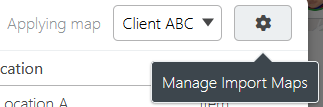
From here you can rename, duplicate, or delete saved maps.
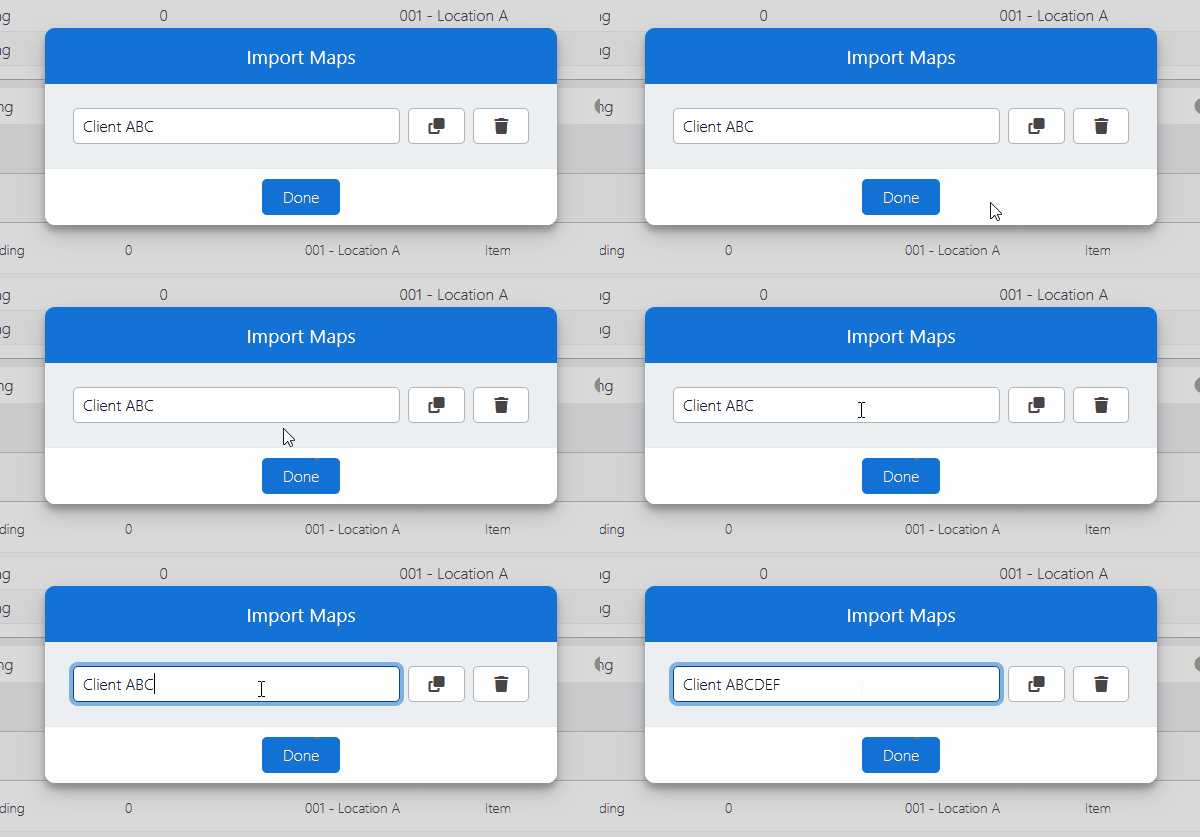
To rename a saved map simply click into the name field and type directly.
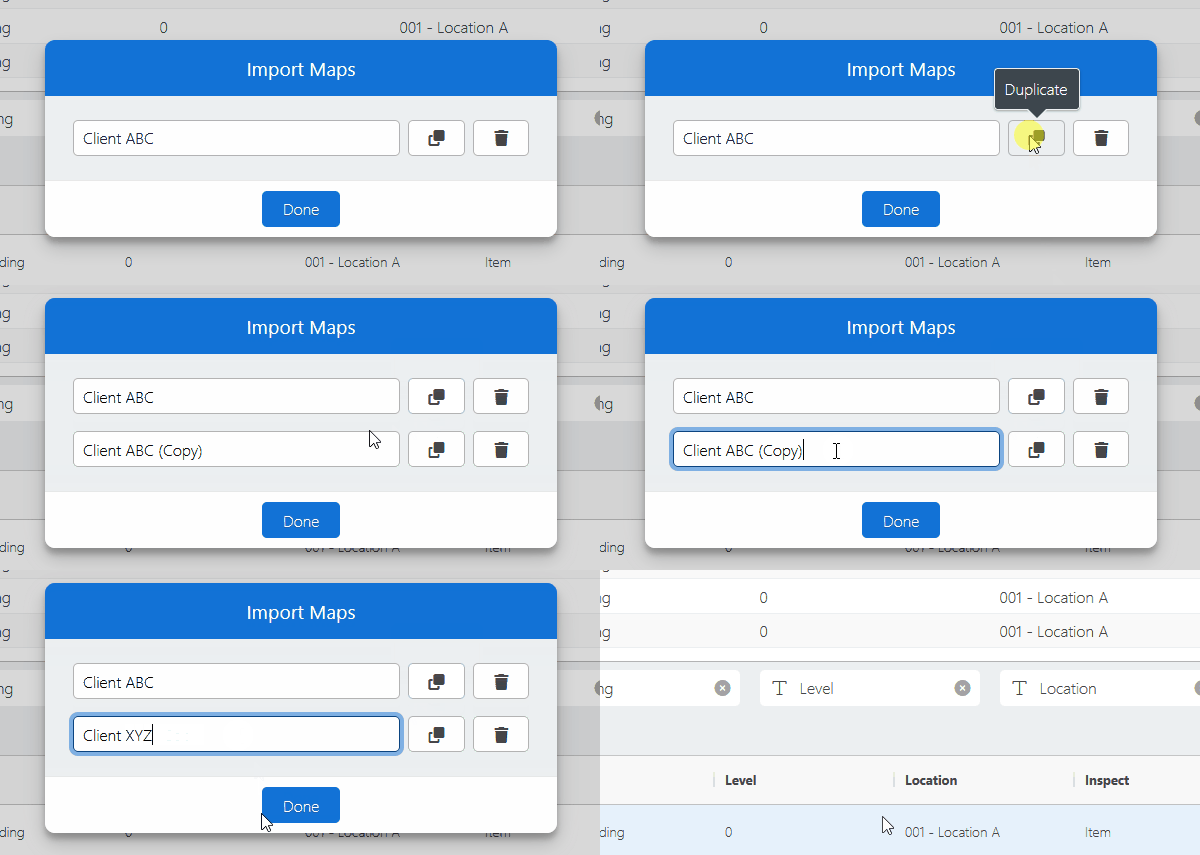
If you have 2 import files that are mostly the same you can save time by creating a map, duplicating it, then modifying the required mappings.
Click the duplicate button then rename the new map if required.
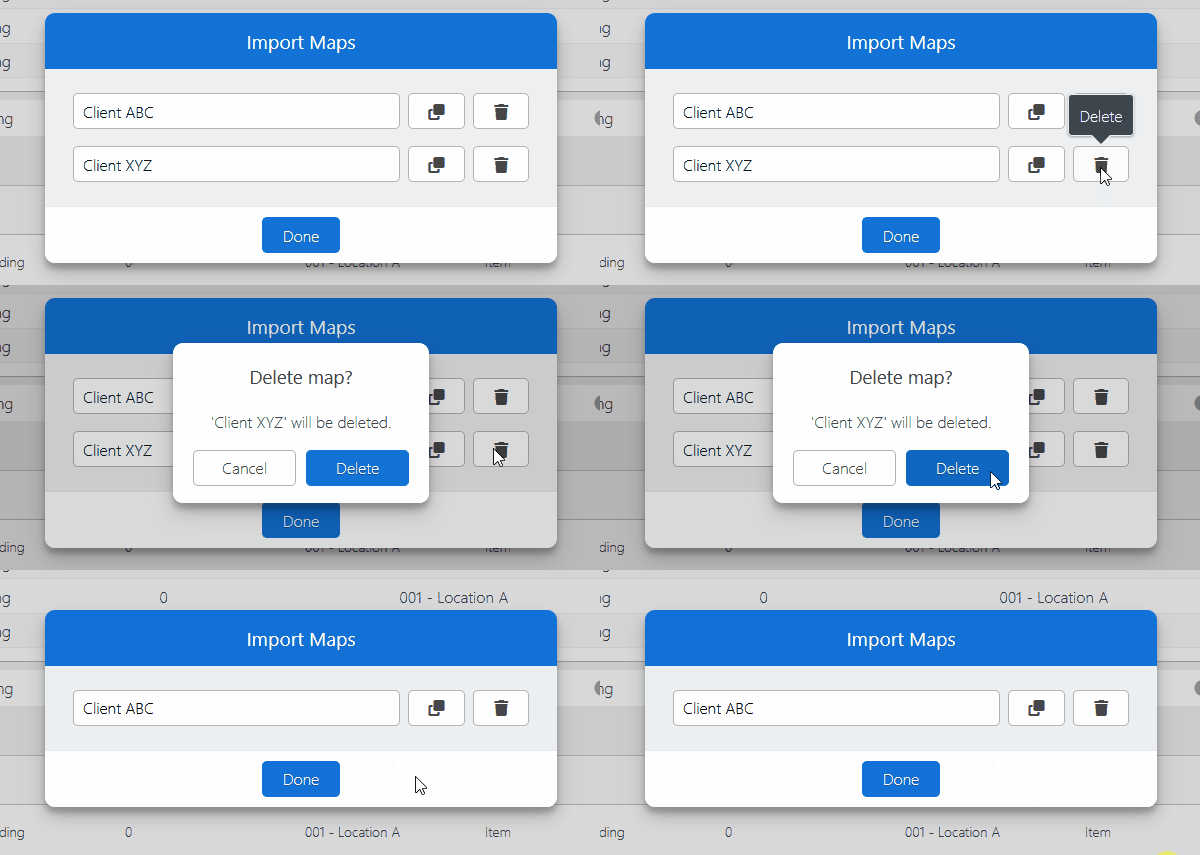
Click the delete button then confirm you want to delete the map.