Search our knowledge base, guides, features, case studies... everything!

You can import data directly from Excel (.xlsx / .xls) or CSV files into reports wherever multiple records can be added, such as the Inspection or Sample Results sections, saving time when transferring information from other systems or existing records.
Multiple maps can be created and saved so you only need to create a map the first time data is imported from a file with a specific format.
Learn more about managing import maps
1. On the Dashboard, open your report.
2. Expand the Section you wish to import data into.
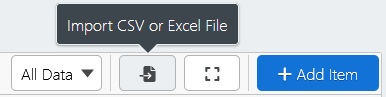
3. Click the Import CSV or Excel File button.
4. Browse to and select your CSV / Excel file
5. Select the worksheet containing the data you wish to import.

NOTE: CSV files can only contain a single worksheet, so the data is loaded automatically.
NOTE: If the selected Excel file has a tab with the same name as the section you're importing data into, it will be automatically selected and it's data loaded.
6. In turn, click Choose a field... below each column you wish to import to map the data to a field within the Flow report
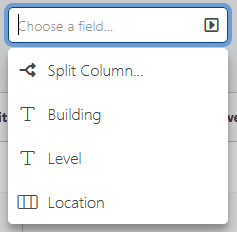
NOTE: Columns are automatically mapped to fields if they have the same name/label.
Data from any field that is not mapped will not be imported.
7. Once all required fields have been mapped, click Import [count] Items.

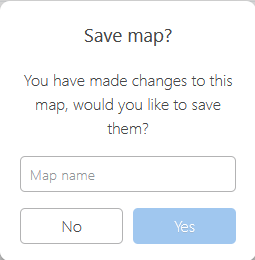
8. Enter a name and click Yes to save the map, or click No to import the data without saving the map.